300% Faster Internet: Optimizing Your Browser with Advanced SystemCare 19
A slow browser can turn even the simplest online tasks into a frustrating experience, whether you’re working, streaming, or just browsing your favorite sites. Over time, hidden junk files, background processes, and unoptimized network settings quietly reduce your internet performance without you even realizing it. The result? Longer loading times, buffering videos, and sluggish downloads. Instead of upgrading your internet plan, a smarter approach is to optimize what you already have.
Tools like Advanced SystemCare 19 Free are designed to tackle these hidden issues by cleaning your system, fine-tuning browser settings, and improving network efficiency. With the right optimization strategy, you can unlock dramatically faster browsing and enjoy a smoother, more responsive online experience every day.
Why Browser Optimization Matters
Before diving into the tool itself, it’s important to understand why your browser slows down over time. Common reasons include:
- Accumulated cache, cookies, and junk files
- Background processes consuming system resources
- Poorly optimized network settings
- Tracking scripts and ads slowing page load times
- Outdated or conflicting configurations
Even a fast internet connection can feel slow if your system isn’t optimized. That’s where a reliable PC cleaner and Windows cleaner like Advanced SystemCare comes into play.
What is Advanced SystemCare 19 Free?
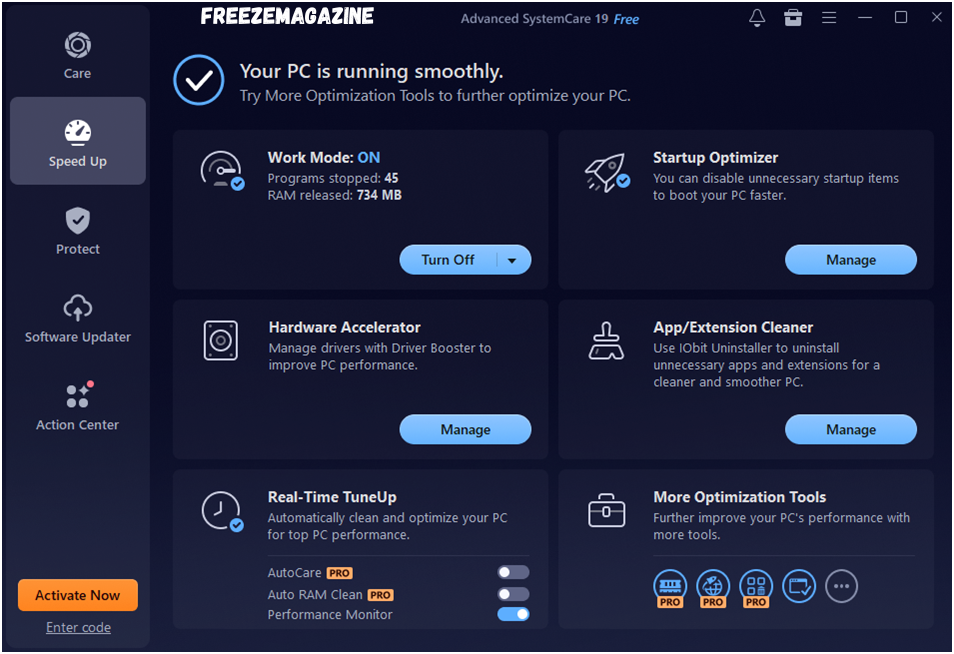
Advanced SystemCare 19 Free is a comprehensive optimization tool developed to enhance PC performance through cleaning, speed boosting, and privacy protection. It combines multiple utilities into a single platform, making it easier for users to maintain their systems without technical expertise.
Key Features for Internet & Browser Optimization
1. Internet Booster
One of the standout features is the Internet Booster, which intelligently optimizes your network settings. It adjusts configurations for popular browsers like Chrome, Edge, Firefox, and Opera to improve:
- Page loading speed
- Download rates
- Online gaming performance
Instead of manually tweaking system settings, this feature does everything automatically, making it ideal for beginners.
2. Browser Protection & Anti-Tracking
Online privacy and speed go hand in hand. Heavy tracking scripts and malicious ads not only invade your privacy but also slow down browsing.
Advanced SystemCare includes:
- Ad blocking for suspicious or harmful ads
- Automatic clearing of cookies and browsing traces
- Protection against tracking attempts
This ensures a cleaner, faster, and safer browsing experience.
3. AI-Powered Cleaning
The latest version introduces an AI Mode that learns your system behavior and creates a customized cleaning plan. It removes:
- Junk files
- Cache and temporary data
- Logs and leftover files from apps and browsers
This intelligent cleaning improves both system performance and browser responsiveness without requiring manual intervention.
4. Turbo Boost
Another powerful feature is Turbo Boost, which temporarily disables unnecessary background processes and services. By freeing up RAM and CPU resources, it ensures that your browser gets maximum system power.
There are different modes available:
- Work Mode (for productivity tasks)
- Game Mode (for gaming and heavy browsing)
This feature is especially useful when multitasking or running resource-heavy applications.
Step-by-Step Guide to Optimize Your Browser
Getting started with Advanced SystemCare is simple. Follow these steps to maximize your browser performance:
Step 1: Run AI Scan
- Open this PC Cleaner and go to the “Care” tab
- Enable AI Mode
- Click Scan to detect junk files, registry issues, and privacy traces
This step identifies everything slowing down your system.
Step 2: Clean and Optimize
- After scanning, click Fix
- The tool will automatically clean and optimize your PC
This instantly removes clutter affecting browser speed.
Step 3: Use Internet Booster
- Navigate to the “Speed Up” or “Toolbox” section
- Select Internet Booster
- Choose your browser and connection type
- Apply the recommended optimizations
This step fine-tunes your network for better performance.
Step 4: Enable Turbo Boost
- Go to the “Speed Up” tab
- Turn on Turbo Boost
- Select either Work Mode or Game Mode
This ensures maximum resources are dedicated to your browsing activities.
Step 5: Activate Browser Protection
- Open the “Protect” tab
- Enable Browser Protection and Anti-Tracking
This improves both speed and security by blocking unnecessary scripts and threats.
Real Performance Improvements
After applying these optimizations, users often notice:
- Faster page loading times: Websites open more quickly as cached clutter, unnecessary scripts, and background interference are reduced, allowing your browser to fetch and display content efficiently.
- Reduced buffering while streaming: Videos and live streams play more smoothly with fewer interruptions, thanks to optimized network settings and improved bandwidth allocation.
- Improved download speeds: Files download faster as system resources are freed and network configurations are fine-tuned for maximum throughput.
- Smoother multitasking: Switching between tabs and running multiple applications becomes more seamless when RAM and CPU usage are optimized.
- Better overall system responsiveness: Your PC feels quicker and more stable, with fewer slowdowns or freezes during everyday tasks.
While the “300% faster internet” claim depends on your system condition, noticeable improvements are common—especially on older or cluttered PCs.
Tips for Even Better Results
To get the most out of your optimization efforts, combine Advanced SystemCare, a reliable Windows cleaner, with these best practices:
- Keep your browser updated: Ensure you’re always using the latest version for improved speed, security, and compatibility.
- Limit unnecessary extensions: Disable or remove add-ons you don’t use, as they can slow down page loading and consume memory.
- Restart your PC regularly: A simple restart clears temporary processes and refreshes system performance.
- Use a lightweight browser when possible: Opt for browsers that consume fewer resources for faster performance.
- Avoid running too many background apps: Close unused programs to free up RAM and CPU power for smoother browsing.
These small yet effective steps can significantly enhance your browsing speed and overall system performance.
Final Thoughts
Slow internet doesn’t always mean you need a faster connection—it often means your system needs better optimization. With tools like Advanced SystemCare 19 Free, you can dramatically improve browser performance, clean up your PC, and enjoy a smoother online experience.
From AI-powered cleaning to network optimization and privacy protection, this Windows cleaner delivers a complete solution for boosting speed and efficiency. Whether you’re a casual user or someone who relies heavily on the internet, optimizing your browser with a trusted PC cleaner can make a noticeable difference.
If you’re tired of laggy browsing and want a quick, effective fix, Advanced SystemCare is definitely worth trying.






Post Comment